

Wi-Fi service
The Wi-Fi service is available to all internal users and to external users who are members of Eduroam, an international federation of universities and research institutions.
Thanks to Eduroam, we can use our University credentials to access the Wi-Fi service when visiting one of its member universities, and our guests can do the same.
Eduroam provides fast and secure access to all the services of the University network from personal mobile devices.
For a secure Eduroam connection, please configure your device:
Windows, Linux, Android, iOS, iPadOS
- delete any previously configured Eduroam Wi-Fi network
- Install the geteduroam app https://www.geteduroam.app
- type "Milano" and select Università degli Studi di Milano
- enter your full university credentials firstname.lastname@(studenti.)unimi.it when prompted.
MacOS
- delete any previously configured Eduroam Wi-Fi network
- for system versions prior to MacOS 15 (Sequoia), go to your Wi-Fi settings and remove the network from the list of known networks
- for later versions, you need to remove the profile by going to System Settings > General. The section you are looking for is "Device Management" (you can also find it by simply writing "profiles" in the search bar in the top left corner of the System Settings window)
- how to configure Eduroam on a Mac: instructions with pictures (Italian only).
- browse https://cat.eduroam.org
- select Università degli Studi di Milano
- download the installer
- install the profile by clicking on the downloaded file
- in MacOS 15 (Sequoia) and later versions, configuration profiles can be found under System Settings > General. The section you are looking for is "Device Management" (you can also look it up by using the search bar)
- in earlier versions (up to MacOS 14 – Sonoma), profile settings can be found under System Settings > Privacy & Security > Profiles (or just write "profiles" in the search bar in the top left corner of the System Settings window).
- how to configure Eduroam on a Mac: instructions with pictures (Italian only)
- now you will be asked to enter your University login details ([email protected] or [email protected] and password) multiple times, and at the end your Mac password.
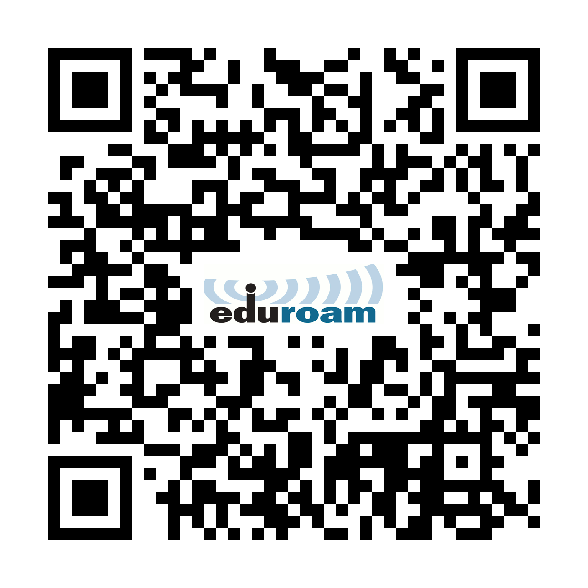
You can also access cat.eduroam.org directly through this QR CODE:
Reporting network problems
Read the section "Detailed information", then collect all useful data to report the incident (your @unimi email, the type of device you are using) and write a message via:
- InformaStudenti (if you are a student)
- SPOC (if you are a staff member)
Institutions hosting non-member users for some time can assign their guests temporary accounts on the Eduroam network. The institution will appoint an internal delegate and open a request on SPOC (Single Point of Contact). The Wi-Fi service will provide the delegate with the tools to create, edit, cancel temporary accounts.
The delegate will provide the guest with the login credentials ([email protected]) required to access Eduroam. Guest users should change their password when they first log in.
Users of @wifi.unimi.it temporary accounts can only access the Eduroam network within the University.
Contacts
For service activation and access credentials, or for special requirements, please open a request on SPOC (Single Point of Contact).